

Shopify Dropshipping Automation
Connect Shopify to Your Suppliers. Automate the Manual Work.
Connect your Shopify store to your suppliers, your own warehouse, or both with Spark Shipping. Import products, keep stock and prices aligned, and automate supported order routing and shipment tracking.
Import new supplier products or connect your existing Shopify catalog.
Trusted by Ecommerce Businesses

Selling on Shopify Takes Too Much Manual Work
Every supplier brings product data, stock levels, costs and order processes that need to work with your Shopify store. As you add products and suppliers, your team has more to keep aligned.
Preparing products for sale
Adding supplier products, checking descriptions and images, and reviewing products before publishing takes time across a growing catalog.
Keeping stock information current
A supplier sells out, but your Shopify store still shows the product as available.
Responding to cost changes
A supplier raises its price, and your team needs to adjust your selling price to account for the increase.
Processing orders and tracking
Someone has to send each order to the right supplier, then retrieve and upload tracking when it ships.
Spark Shipping connects these processes, helping you expand your catalog and handle daily orders with less manual work.
How Spark Shipping Connects Shopify with Your Suppliers
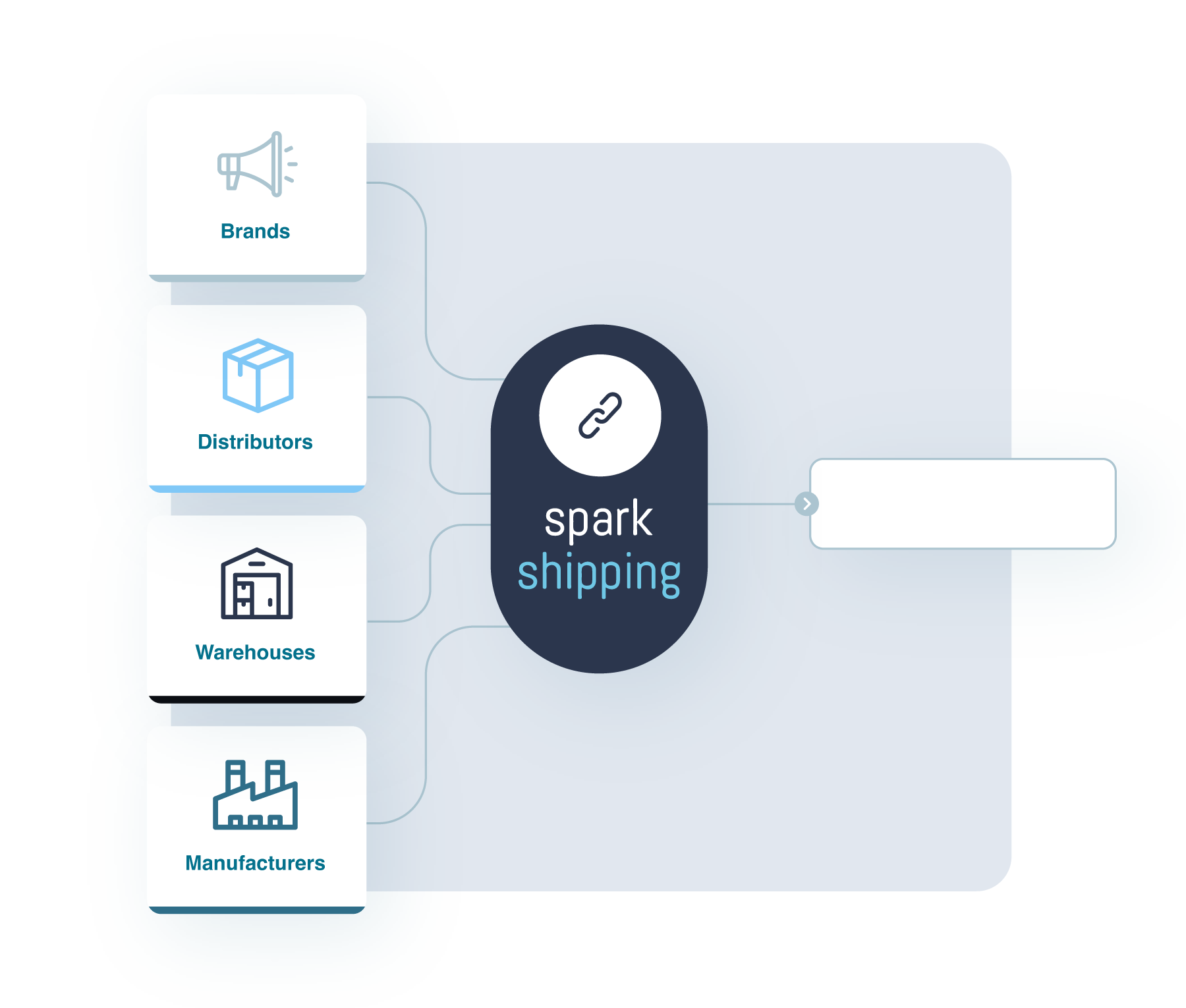
Bring supplier products and warehouse stock into your Shopify workflow. Choose what to sell, how stock and selling prices should be updated, and which suppliers should receive your orders.
1-Click Product Importing
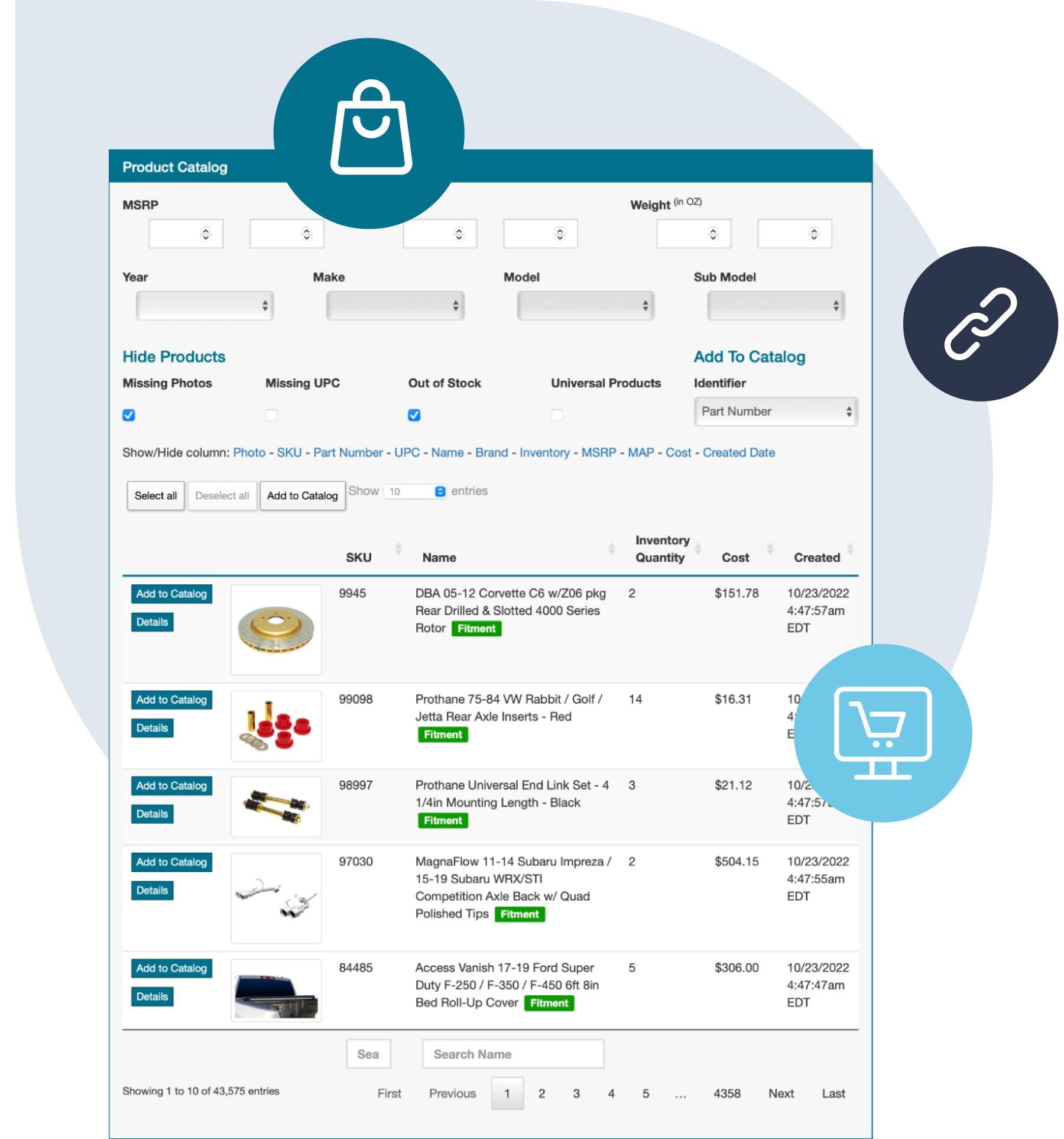
Send selected supplier products to Shopify, or connect products already in your store to the same items in a supplier’s catalog.
Keep Inventory and Pricing Updated
With inventory and pricing updates enabled, Spark Shipping uses supplier or warehouse data and the settings you choose to update stock quantities and selling prices in Shopify.
Send Orders to Suppliers
Once automatic ordering is turned on, Spark Shipping sends Shopify order items to the supplier or warehouse selected by your rules. Each connection must support receiving orders.
Return Tracking to Shopify
When a connected supplier or warehouse provides shipment tracking, Spark Shipping sends it to the matching Shopify order.

Inventory & pricing updatesKeep Shopify Stock and Prices Up to Date
Supplier stock and costs can change across hundreds or thousands of products.
Connect each Shopify product or variant to the same item from your supplier or warehouse. This tells Spark Shipping which stock and cost information belongs to that product, even if the product codes differ.
Choose how much stock to show as available, using stock buffers and quantity limits, and how to calculate your selling prices. With inventory and pricing updates enabled, Spark Shipping updates Shopify using those choices.
Update timing depends on how often suppliers provide fresh information, how much data needs processing and Shopify’s update limits. Stock can still change between updates.
Route Shopify Order Items to the Right Supplier
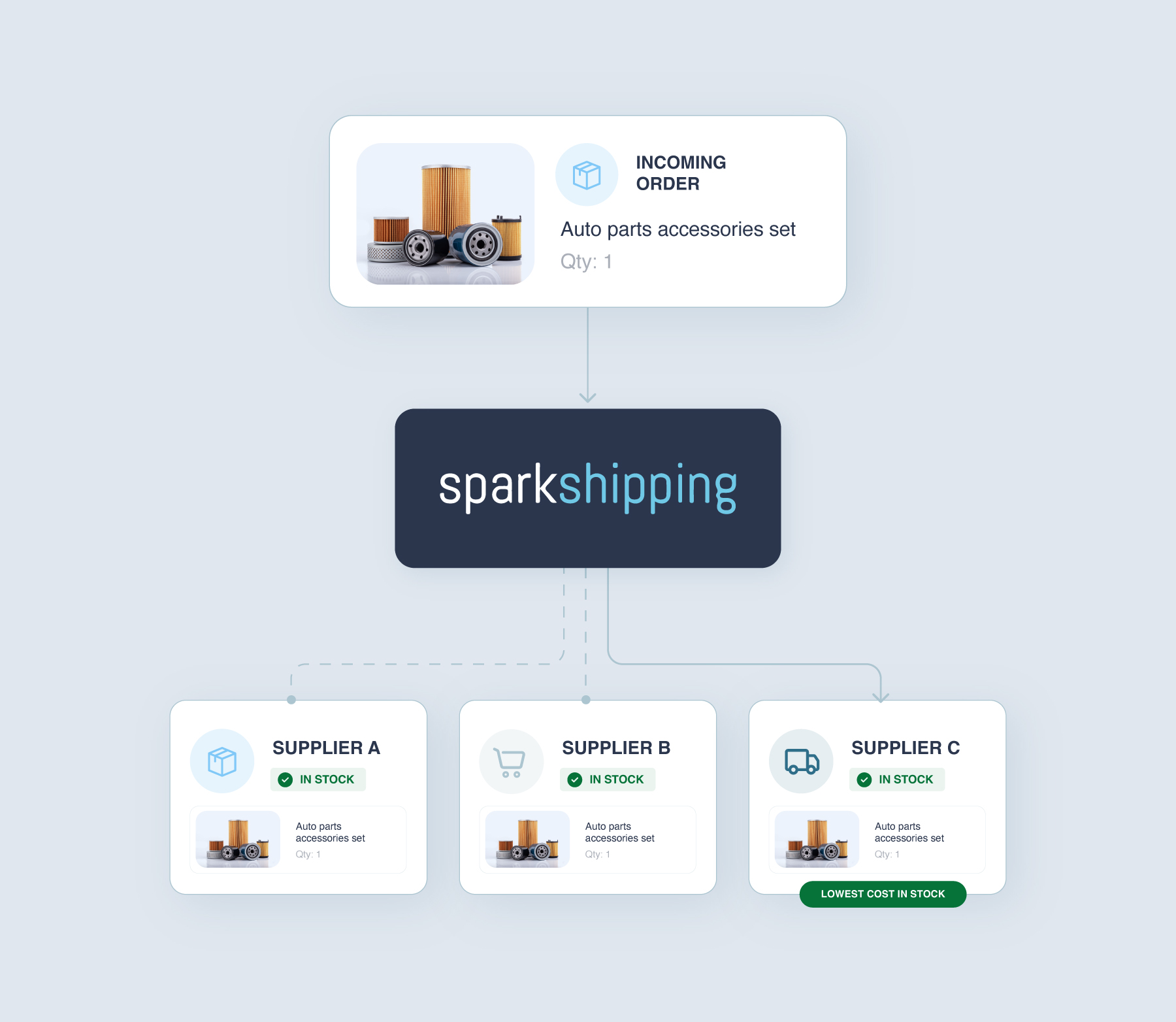
Connect the same Shopify product to more than one supplier. Spark Shipping keeps each supplier’s product code (SKU), cost and stock separate, then uses your rules to decide who receives each item in an order.
For lowest-cost routing, Spark Shipping compares the supplier costs you have entered, including any shipping and handling charges you have added. Check what your chosen routing method does when stock is unavailable before enabling automatic ordering.
With automatic ordering turned on and a connection that supports sending orders, Spark Shipping sends each order item to its selected supplier. Orders containing products from different suppliers can be split between them. You can also hold selected orders for approval. When suppliers provide tracking numbers, Spark Shipping sends them to the matching Shopify order.
Expand Your Shopify Catalog with 1-Click Product Importing
Choose products from a connected supplier’s catalog and use 1-Click Product Importing to send the descriptions, images and pricing information your supplier provides to Shopify.
In Spark Shipping, choose to send new products to Shopify as drafts. You can then review their details and selling prices in Shopify before making them available to customers.
Already have a catalog? Connect your existing Shopify products to the corresponding supplier items instead of creating those products again. You can connect more than one supplier to the same product and keep each supplier’s product code, stock and cost separate.
What Our Customers Have to Say
-
"Choosing Spark Shipping was a game-changer... What stood out was their range of pre-existing integrations and their openness to new ones—it never took more than 30 days. This quick integration is quite exceptional in the industry."Paul Andrew, CEORead Full Case Study -

"Spark Shipping has made my business pretty much run on autopilot... The orders come in, get processed, sent to my suppliers, and the tracking is sent back. I never have to worry about inventory levels.Burt WheelerRead Full Case Study -

"The most appealing part was the ability to automate all of my dropship orders. Their help has resulted in a dramatic decrease in the human labor needed to keep our order flow going."Sam FineRead Full Case Study -

"We were looking for a company that could do custom API integrations with our dropshippers... Spark Shipping automated and simplified the flow of order, tracking, and inventory data, saving staff hours."Read Full Case Study
Connect Your Suppliers or Add New Ones
Explore 150+ prebuilt integrations: connections already built for suppliers such as Ingram Micro and Turn 14 Distribution. Use them to connect the supplier accounts you already have.
Suppliers can share information through files, email or direct software connections. Spark Shipping supports supplier connections using APIs, EDI, CSV and XML files, FTP/SFTP and email. Support for product imports, stock updates, orders and tracking depends on each supplier’s systems.
Tell us which supplier you want to connect. Our team can review how they share information and handle orders, then advise on the connection. Custom integration options and setup costs depend on the supplier and your plan.
Get Help Setting Up Your Shopify Integration
Start with your Shopify store and the suppliers or warehouse you want to connect. Spark Shipping offers onboarding and training to help configure your setup, with support options depending on your plan.
1. Connect Shopify to your suppliers or warehouse
In Spark Shipping, choose “Connect to Shopify,” then sign in to Shopify and approve the installation permissions. Next, connect the suppliers or warehouse you want to use.
2. Set up your products and rules
Connect each Shopify product to the same item from your supplier or warehouse. Choose stock, price and order settings, including which system updates stock at each Shopify location.
3. Review your setup
Check a small selection of connected products: stock quantities, selling prices and which supplier receives each order item. Review draft-product settings and Shopify locations before turning automation on.
Shopify Integration FAQs
How do I connect suppliers to Shopify?
You need access to your Shopify store and the supplier accounts or warehouse systems you want to connect. You also need access to the product and stock information you want to receive, and the ordering method each supplier supports.
In Spark Shipping, choose “Connect to Shopify,” then sign in to Shopify and review the installation permissions. Connect your suppliers or warehouse, then import new products or connect existing Shopify products to the same items from those suppliers. Choose your stock, pricing and order settings before turning automation on.
Can I keep my existing Shopify products when connecting suppliers?
Yes. Connect each existing Shopify product or variant to the corresponding item in your supplier’s catalog. This tells Spark Shipping that the items are the same, even when their product codes differ. Review the connections to confirm the supplier can provide the exact item you sell.
Spark Shipping then knows which supplier stock and cost information belongs to each Shopify product. With the connections and automation settings in place, it can update inventory and selling prices and send orders to the chosen supplier. More than one supplier can be connected to the same item.
Learn about automated product linking.
How do I import supplier products into Shopify?
Connect your supplier to Spark Shipping, choose the products you want to sell and use 1-Click Product Importing to send their information to Shopify. Descriptions, images, prices and other product details depend on what your supplier provides.
Before importing, choose your options in Spark Shipping. You can send products to Shopify as drafts for review and choose which supplied details to include. Check descriptions, images, variants and selling prices before making products available to customers. For products with vehicle compatibility information, also choose how that information should be added.
Can I import supplier products into Shopify as drafts?
Yes. To review products in Shopify, enable “Set Product Status to Draft” in Spark Shipping’s Shopify product options. New products arrive as Shopify drafts. Review and activate them in Shopify before making them available on your sales channels.
To review products inside Spark Shipping first, use “Product Draft Mode.” Products stay there for review before you send them to Shopify. Choose where you want to review your catalog, and check sales-channel availability before publishing.
See the two draft settings and Shopify storefront visibility.
How do I sync supplier inventory with Shopify?
Connect each Shopify product to the corresponding supplier item and choose how much stock to show as available. With inventory updates turned on, Spark Shipping uses changes in supplier quantities and your settings to update Shopify. This reduces repeated stock checks and manual quantity edits.
If you track stock at more than one Shopify location, check which supplier or warehouse updates each one. Sync timing depends on how often suppliers provide fresh data, the amount being processed and Shopify’s update limits. Stock can still change between updates.
Can I use multiple suppliers and my own warehouse with Shopify?
Yes. You can connect several suppliers to the same Shopify product and combine supplier-fulfilled orders with stock from your own warehouse. Each supplier or warehouse needs a way for Spark Shipping to receive stock information and send orders.
Keep each supplier’s product code, stock and cost connected to the correct Shopify item, then choose the rules for who receives its orders. This lets you use several suppliers without creating a separate storefront product for each one. If you use several Shopify locations, link each supplier or warehouse to the appropriate location.
How does Spark Shipping work with Shopify locations?
A Shopify location can represent your warehouse, a retail store or stock held by a supplier. In Spark Shipping, link each supplier’s inventory to the corresponding Shopify location so stock updates go to the right place. Your distributor still chooses which of its warehouses physically ships an order.
Create any locations you need in Shopify first, then connect them in Spark Shipping. Review existing quantities and location settings with support before turning on multi-location updates.
If enabled, the “Disconnect inventory from existing locations” setting sets stock to zero at Shopify locations Spark Shipping does not manage. Turning on multi-location updates cannot be undone. The Shopify multi-location setup guide covers the full sequence.
Can supplier cost changes automatically update my Shopify prices?
Yes. Connect supplier cost information to the correct Shopify products, choose how to calculate your selling prices and turn on automatic pricing updates. Spark Shipping then uses supplier cost changes and your pricing rules to send new selling prices to Shopify.
Use price tolerance to set limits on automatic price rises and falls. Review any changes flagged under “Pending Price Updates.” Recording supplier costs in Shopify’s product cost field is a separate option from updating customer selling prices. Allow for fees, shipping and supplier charges when choosing your rules.
How do I automatically send Shopify orders to suppliers?
Set up a connection that supports sending orders to each supplier, and connect your Shopify products to the corresponding supplier items. With automatic ordering turned on, Spark Shipping receives Shopify orders and sends each item to the supplier selected by your rules.
Orders containing items from several suppliers can be split between them. You can also hold selected orders for approval. If you need time to edit orders in Shopify, you can add a processing delay before Spark Shipping imports them.
Learn about automated order fulfillment and Shopify order processing delays.
How do supplier tracking numbers get back to Shopify?
When a connected supplier provides shipment tracking, Spark Shipping receives it and sends it to the matching Shopify order. This saves your team from copying tracking numbers out of supplier portals and adding them to orders by hand.
The timing depends on when the supplier provides shipment information and when Spark Shipping processes the update. Shopify’s notification settings determine the shipping messages sent to your customers.
Can I use supplier fitment data on Shopify?
Yes, if your supplier provides vehicle compatibility information, such as year, make and model. Spark Shipping can add this fitment data to Shopify product descriptions, tags or metafields—extra product-data fields in Shopify—using the options you choose for the import.
Adding that information to products is separate from providing a year, make and model search on your storefront. Check the data format your theme or fitment app needs before importing. Available fitment coverage depends on the information your supplier provides.
Can Spark Shipping connect a supplier that is not already listed?
Yes, a supplier can be considered even if it is not in Spark Shipping’s library of 150+ prebuilt integrations. Our team can assess a new connection based on how that supplier shares information and receives orders.
Tell us the supplier’s name and share any instructions they provide for stock updates, ordering and tracking. The available automation depends on their systems and the access you have. Custom integration options, onboarding and setup costs depend on the supplier and your plan.
Explore supplier integration options.
See How Spark Shipping Can Work for Your Shopify Store
Tell us which suppliers you use and whether you already have products in Shopify. Share how you fulfill orders, including any warehouse or location setup. We’ll show you how Spark Shipping can connect your workflows and reduce manual work.