Before Supplier feed
- Product title
- SHOCK MOUNT KIT- 3500#
- Product description
- No description provided.

Spark AI Product Data
A supplier feed can give you a part number, a shorthand title, and little else. Multiply that across a catalog and suddenly your team is writing thousands of listings by hand.
Spark Shipping uses the product data you already import to generate clearer titles and descriptions as you add items to your store.
Supplier feed
Store listing
Catalog example
A supplier sent an abbreviated title and no description for Lippert part 281255. See how the same product can appear in your store with the details shoppers need to check the fit.
Add gas-charged shocks to your trailer’s leaf spring suspension to help absorb road shock and reduce bounce while towing.
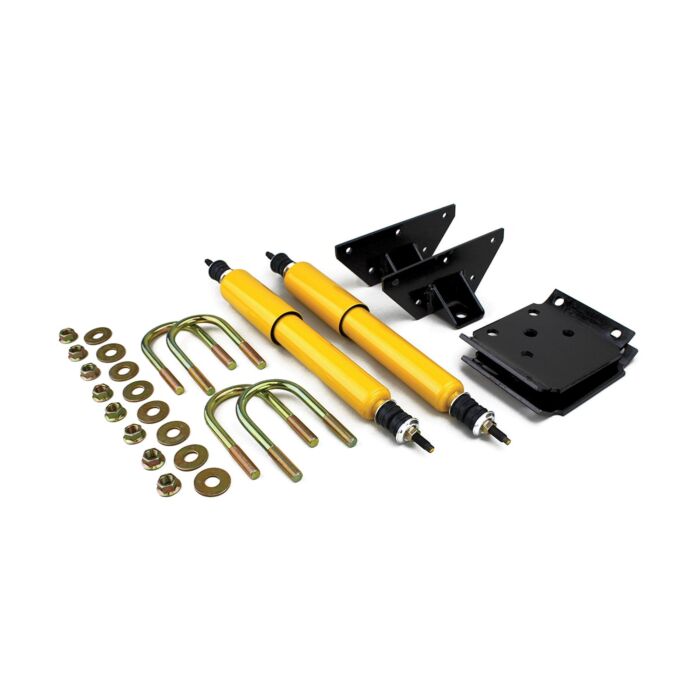
Listing adapted from Spark Shipping’s original example. Product details and photo from Lippert’s listing for part 281255.
Choose which fields Spark Shipping generates when you send supplier products to your store.
Connect your supplier feed in Spark Shipping and open the Vendor Product Catalog.
Under AI Product Data, enable Title, Description, or both for that vendor. Use Custom Prompts to save title and description instructions that apply across vendors on the same site.
Open Details for a vendor SKU and select AI description to see a sample title and description.
Spark Shipping includes the generated titles or descriptions when it sends the product data to your store.
See how to enable Title and Description and preview a sample from your catalog.
When the feed copy is short or generic, start with a draft you can work with.
Use details like brand, part number, and fit in descriptive titles and copy so shoppers can identify the right item in search results and on the product page.
Generate copy as you import products so your team spends less time writing each title and description from scratch.
Turn shared supplier data into copy written for your store. Save prompts to guide the tone, structure, and details you want to highlight across suppliers on the same site.
Yes. In the Vendor Product Catalog, choose Title, Description, or both under AI Product Data for the vendor.
Yes, one product at a time. Open the product in Spark Shipping, use Generate with AI next to the field, review the copy, and save the product.
You can edit the title or description in your catalog. To guide future output, save a Title Prompt or Description Prompt under Custom Prompts. Those prompts apply to all vendors on that site.
Yes. In the Vendor Product Catalog, open Details for a product and choose AI description on the Vendor SKU page to generate a sample.
AI Product Data is listed on the Growth and Premium plans. Check your catalog settings for your account’s access and credit allowance, or see Spark Shipping pricing for the current plan breakdown.
Bring an example of a product you sell. We’ll show you how catalog imports, titles, and descriptions fit into your store’s workflow.