
Need to integrate your shopping cart with MWW On Demand?
- Want to integrate MWW On Demand with your e-commerce store?
- Are you spending hours keeping product listings updated?
- Is order tracking for your customers difficult?
MWW On Demand Integration Details
- Integration Method: API
- Setup Fee: Free
- Categories: Make On Demand
- URL: http://mwwondemand.com/
- Headquarters: East Rutherford
.png)

Trusted Automation for Fast-Growing eCommerce Brands





Instant MWW On Demand Integration & Automation
Product Data
- Load complete product listings with rich attributes.
Inventory and Pricing:
- Sync stock and pricing automatically.
- Maintain MAP compliance.
- Prevent overselling.
Orders and Tracking:
- Route orders directly to MWW On Demand.
- Receive tracking updates back to your shopping cart automatically.
How to Connect MWW On Demand to Your Shopping Cart
- Log in to your vendor’s dealer portal and look for a section labeled API, Integrations, or Data Feeds. If unavailable, contact your vendor representative to request their API keys or FTP credentials.
- In your Spark Shipping dashboard, go to Vendors.
- Click Add Vendor, then select MWW On Demand from the list of integrations.
- Enter the credentials you retrieved in Step 1 (such as API Keys, FTP details, or Client IDs) into the corresponding fields.
- Click the Test Connection button to confirm that Spark Shipping can communicate with MWW On Demand’s system.
- Once validated, the connection is live. Spark Shipping will begin downloading the product catalog (the initial sync time varies by vendor).
- You can now configure your automation rules to automatically sync inventory, pricing, and route orders.

-1.webp)


-1.webp)








%20(1)-1-1.webp?width=200&name=weapon-depot-logo%20(1)%20(1)-1-1.webp)
Case Study
-

"Choosing Spark Shipping was a game-changer for us at Juiced Accessories. Their ability to swiftly implement solutions made a significant impact."
-
"Since using Spark Shipping we have seen growth in sales and a reduction in time spent processing orders. Spark Shipping's inventory and ordering save us a lot of time and have brought us extra business opportunities with the inventory data."


Choose Your Path to Scale
MWW On Demand Integration Benefits

List MWW On Demand Products Fast
- Automatically update your site with available stock
- List thousands of products in seconds
- Update the latest prices
- Stay in MAP compliance
- Upload images and descriptions
- Include products from multiple suppliers
- Send orders directly to your distributor

Improve User Experience and Grow MWW On Demand Sales
- Connect your product catalog with customer-facing apps
- Maximize product choice for customers
- Allow users to search large product databases with ease
- Build trust with customers & elevate your brand

Automate MWW On Demand Tracking
- Automatically provide your distributors tracking updates to customers
- Save time dealing with customer tracking requests
- Improve customer experience
MWW On Demand Product Catalog Automation
The Spark Shipping MWW On Demand integration connects directly to the MWW On Demand API to keep your store updated with accurate product data, pricing, and availability.
You receive automatic updates for:
Product Attributes
- Product descriptions and specs
- UPC, MPN, and identifiers
- Category and brand data
High-Quality Images
- High-resolution images
- Multiple views when available
MAP Pricing and Availability
- MAP-compliant pricing
- Real-time stock levels
- Low stock and out-of-stock updates
Fast Publishing
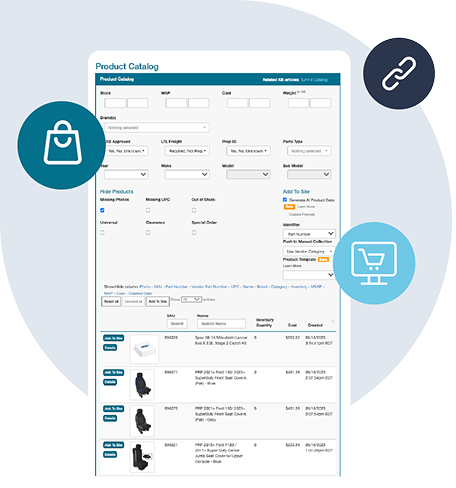
New MWW On Demand products appear in your dashboard and can be published quickly with complete data.
This gives you a clean, accurate, and always up-to-date MWW On Demand catalog without manual work, supported entirely through the MWW On Demand API.
Want to Find Out More?
Technical Specifications
Synchronize Products
- Create MWW On Demand products in your cart
- Show MWW On Demand products not currently in your cart
- Learn more about Full Product Data Upload
Update Inventory
- Get inventory quantity updates from MWW On Demand
- Update the quantities in your cart
Send Orders
- Get new orders from your cart
- Send order fulfillment requests to MWW On Demand
Update Tracking
- Get tracking updates from MWW On Demand
- Send shipment data to your cart
- Your cart will notify the buyer that their item has shipped
Choose Your Path to Scale
Frequently Asked Questions
How do I connect MWW On Demand to my ecommerce store?
Connecting MWW On Demand to your store lets you bring in product information, keep stock and prices updated, and send customer orders to the supplier. You will need a supplier account and permission to use the services you want to automate.
Spark Shipping automates these tasks so you spend less time copying information and placing orders yourself. Connect your store, add MWW On Demand, then choose products to add or match the supplier’s products to listings already in your store.
You can also have a developer build a connection using the supplier’s API or data files, but you or your developer will need to maintain it.
Before switching on automatic ordering, test an order and its tracking and complete any supplier approvals. Product information access and ordering permission may be separate. See supplier integration options.
What product information can I import from MWW On Demand?
You can import the product details MWW On Demand supplies, such as names, descriptions, images, specifications, product codes and prices. What you receive depends on the supplier and your account; some images or descriptions may require a separate content service or license.
Spark Shipping automatically downloads the available product information. You can then select the products you want and import them into your store with one click, without building each listing manually.
This saves you from entering each listing manually and makes it easier to add a supplier’s range to your store.
Alternatively, you can enter details yourself, import a product file or have a developer build and maintain a connection to the supplier.
Start with a small category and check sizes, product options and pack quantities. Match any products already listed so you do not create duplicates. See publishing products from the catalog.
How do I sync MWW On Demand inventory with my store and avoid overselling?
Keep your store’s stock quantities updated from MWW On Demand so customers see what the supplier has available. You can also hold back a small quantity from sale as a stock buffer to reduce the risk of selling items that have just run out.
Spark Shipping checks supplier stock on a schedule and automatically updates the matching products in your store. Once you connect the store and supplier, match your products and choose your stock settings, you no longer need to repeat those stock checks and edits manually.
You can update quantities yourself or build a connection to the supplier’s stock data, which you or your developer would maintain.
Check the warehouse locations included and test an out-of-stock product. Stock can change between updates, so automation reduces overselling risk without eliminating it completely. See inventory synchronization settings.
How do I automate price updates for MWW On Demand products?
You can keep selling prices in line with MWW On Demand cost changes by setting rules for how each cost becomes a retail price. Allow for delivery and selling fees when choosing your markup.
Spark Shipping automatically updates prices using supplier costs and the pricing rules you choose, so you don't have to check every cost change and recalculate prices yourself. Connect your store and supplier, set your rules and check a few products before applying them more widely.
You can also calculate and edit prices manually or have a developer build and maintain a connection to the supplier’s price data.
If MWW On Demand provides minimum advertised price (MAP) information, use the relevant pricing settings and check the brand’s policy. A price feed alone does not guarantee compliance. Review changes held for approval if that option applies. See store price update settings.
How do I send orders from my store to MWW On Demand automatically?
Automatic ordering sends customer purchases from your store to MWW On Demand without you placing each supplier order yourself. First, match the store products to the supplier’s products and make sure your account is approved for live orders.
Spark Shipping automatically sends the order items assigned to MWW On Demand, reducing repeated order entry as sales grow. Connect your store and supplier, check a test order for the right products, quantities and delivery address, then enable automatic ordering after any required approvals.
The alternatives are placing each order through the supplier’s tools or building and maintaining your own connection to its ordering API.
Decide how your team will handle rejected orders or unavailable items. Access to product or stock information does not always include permission to place orders. See order routing instructions.
How do I sync MWW On Demand tracking updates back to my store?
Tracking can be added to your store once MWW On Demand ships the goods and provides the shipment details. Each tracking number needs to reach the right customer order and products.
Spark Shipping automatically collects supplier tracking and adds it to the matching store orders, saving you from looking up and copying shipment details yourself. For orders sent in several packages, check that each tracking number is returned correctly.
You can also copy tracking manually or have a developer build and maintain a connection to the supplier’s shipment API.
Check a shipped order before relying on automation, and review your store’s notification settings so customers receive the shipping messages you want. See tracking automation overview.
How do I sell MWW On Demand products alongside other suppliers and stock in my own store or warehouse?
You can sell MWW On Demand products alongside other suppliers and stock held in your own store or warehouse. Decide who should ship each product and which source takes priority when several carry the same item.
Spark Shipping automatically sends the relevant order items to each supplier or your own shipping team, saving you from splitting and forwarding every order manually. Depending on your setup, you can choose sources using supplier priority, cost, warehouse distance or the delivery destination.
You could also divide orders yourself or build and maintain connections to each source.
Check that product codes, sizes and pack quantities refer to the same item before combining sources. Test an order with products from several sources, including its tracking; supplier restrictions and available stock still affect who can fulfill it. See choosing an order routing rule.